Daily work
Project costing and draws
The schedule of values, adjusting a line without a change order, and requesting draws.
In short
Project costing is the schedule of values: your budget, the changes to it, the updated budget, what you have spent and what remains. Draws bill the difference as the work goes.
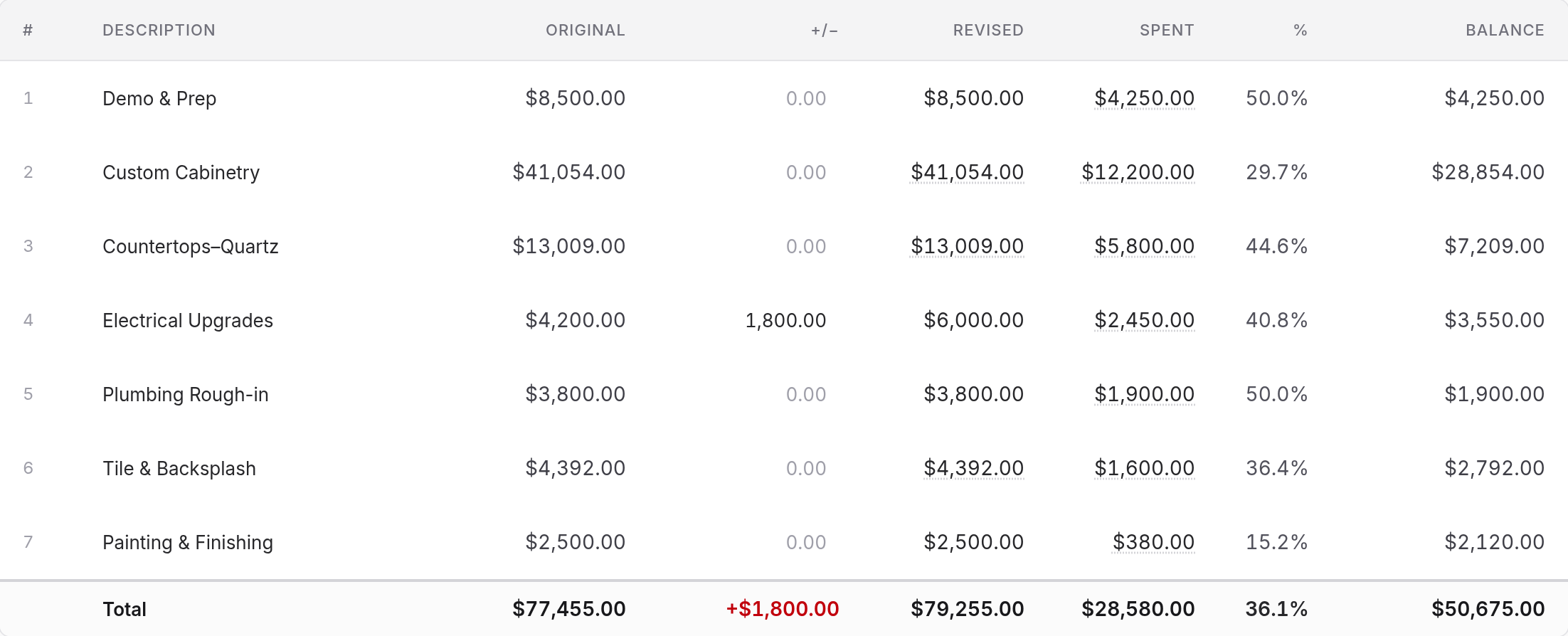
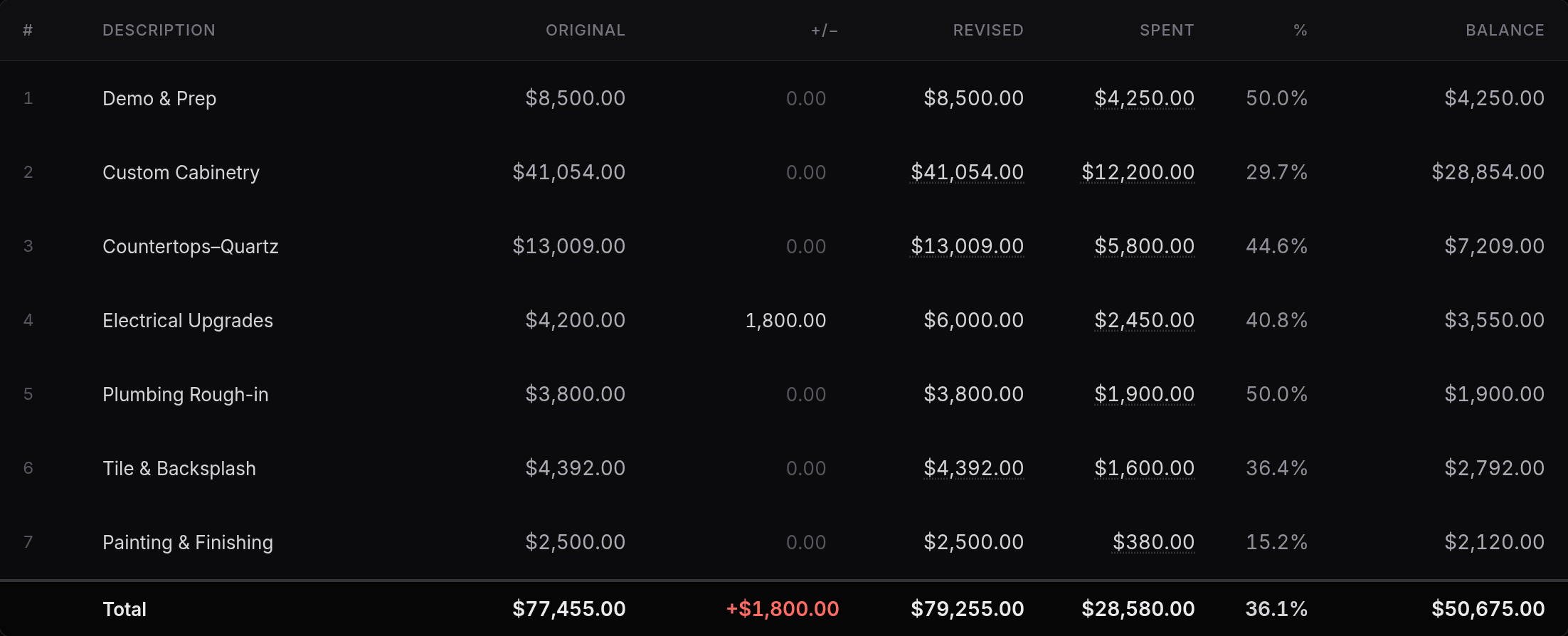
An active job's Project Costing tab is where the money stands: the schedule of values, what's ready to bill and your draw requests (money received is on Payments). The schedule of values lists every category with its Budget, Changes, Updated budget, Spent to date, percent and Remaining.
1
2
3
Budget stays fixed; changes show as their own column.
Budget against updated budget
Two columns do most of the work here.
Budget is what you contracted for. It does not move.
Updated budget is where the job is now, after approved change orders and any adjustments you have made. The difference between them shows in Changes, so the story of how a job grew is legible at a glance rather than buried in a diff of the estimate.
Remaining is what's left of the updated budget. When a category has spent past it, Remaining says so in words ("$1,700.00 over"). It turns red only when the overage is both more than 10% of the category and more than $1,000; a smaller one stays plain text.
This is why adjusting a budget here is different from editing the estimate on the Budget tab. Editing the estimate moves both columns together, which is right when you got a number wrong. Adjusting here moves only Updated budget, which is right when the job changed.
Adjusting a line
Type a signed amount straight into a line's Changes cell. What you type is that line's total departure from its Budget, so typing over an existing adjustment replaces it rather than stacking. Clearing the cell puts the line back to its budget.
Moving budget between two categories is one adjustment down and one adjustment up.
A line can go below zero. A Discount category taking -10,000 is a credit, and the updated budget and contract go down by that much. Its Remaining shows a dash, since there's nothing to spend from a credit.
Note
None of this creates a record the client sees. If a change needs to be visible and agreed, draft a change order on the Change orders tab instead.
Fee lines work differently, because a fee already moves on its own as the work it is based on changes. Choose the fee's Changes cell and you get three options: leave it automatic, set a flat amount, or set a percentage of the categories you pick. If you set a rule and the underlying costs move later, the line tells you what the rule would produce now and updates in one click.
The same dialog sets how the fee is billed as work is done:
- % of costs spent: the fee's percent of what's been spent in its categories, so a 20%
fee on $50,000 of work bills $10,000.
- Match % complete: the fee's updated budget times how complete its categories are,
up to 100%. When its categories are 74% complete, so is the fee.
- Off: the fee isn't billed as you go.
The two billing options give the same figure until the fee has been adjusted or the work runs over budget. When one is on, the fee line's Spent to date shows what it has earned, the totals include it, and draw requests bill it. A cost-plus job's fees bill as % of costs spent unless you choose otherwise; a fixed-price job's are off until you turn one on.
Budget alerts and the weekly email
You don't have to open the app to find out a job is slipping. Owners and admins get two emails:
- A budget alert when a category, or a whole job, reaches 80%
of its budget, and again if it goes over. Each crossing is reported once, not every day. If a category drops back under and crosses again, you hear about it again.
- A weekly job-health email on Monday morning, listing every active job against its
budget, worst first, with what was spent that week and any categories that are close or over. Any draw requests that are past due are listed first, then what's coming up: new draws you haven't sent, draws due that week, each fixed-price job's next payment to bill, and proposals waiting for a signature.
Both count uncategorized spend against the job as a whole, since it's money already out the door. They can't put it against a category until you file it, so the weekly email reminds you when some is waiting.
The budget sections cover active jobs only; proposals, completed and archived jobs are left out. Late draws are listed whatever the job's state, because the money is still owed. Change where the "close to budget" line sits (anywhere from 50% to 100%), or turn either email off, in Settings → Notifications. Every email also has a one-click unsubscribe link.
Fixed-price jobs bill by the schedule
If the proposal carried a payment schedule (see How the client pays), Project Costing bills from that schedule instead of a spend-based request. Each payment shows as Paid, billed on a draw, Next, or waiting its turn.
- The dollars are the ones the client signed. When the job goes active, each payment is
fixed at its signed amount, so a later change to the estimate never re-prices a payment that was agreed as a percent.
- Bill this payment makes a draw request for exactly that payment. The deposit's draw
is due the day you bill it; the others take your usual payment terms. You can bill a later payment first if the work finished out of order.
- An approved change order is added to the next payment that hasn't been billed, not
billed on its own ahead of the work. If every payment is already billed, it becomes a payment of its own at the end.
- The draw sheet for one of these draws prints the payment schedule, what this request
bills and what's left after it. It leaves out the schedule of values, whose spent column is your cost.
- Voiding a draw puts its payment back to be billed again.
The schedule of values stays below for you: it's still how you see budget against spend on the job.
Draw requests
A draw request bills the client for progress. On a job without a payment schedule, the current request is what you have spent and categorized, less what has already been funded and less any draws you've requested that haven't been paid yet, so a second draw never bills the same work twice. It also adds any fee billed as work is done (every fee on a cost-plus job, unless you turn it off): what each fee category has earned, as set above. The draw sheet shows it as its own line, Plus: fee on the work. A contingency category earns nothing.
Uncategorized spending is deliberately left out. If it counted, the bottom line would not tie to the table above it, and you would be billing against charges you have not yet looked at. A banner tells you what is waiting and links you to it.
New draw request starts from that calculated amount, and you can type a different one when you need to bill more or less, say a round $90,000 to cover what's coming up. You can also request an amount when nothing is calculated yet. When the amount differs, a draw sheet that shows your costs lists both: the calculated request, then this request.
Raising a request freezes a snapshot. The copy you send the client keeps its numbers even as the job carries on, which is what makes an old draw worth keeping.
Sending a draw
A new draw waits for you to send it. Send emails the client on the job a short note from you with the draw attached as a PDF, and replies come to you. If you've shared a progress link, the email includes it. The draw then shows when it was sent, and when the client last opened their progress page, so you can tell a draw that's been looked at from one that hasn't. Opening the page yourself doesn't count.
Until a new draw goes out, the draw request list shows it with a Send button, for 14 days after you make it. Prefer to send it your own way? Download the PDF instead; the draw stays marked as not sent, and the reminder goes quiet after those 14 days.
Due dates and reminders
Every new draw request gets a due date: the day you create it plus your payment terms, 15 days unless you change it under Payment due after in Settings (anywhere from 0 to 120 days). The due date prints on the draw sheet. Changing the setting only affects new draws, so a date you've already sent never moves.
Open draws show when they're due, or how many days late they are. A late draw shows in Money owed to you at the top of the Jobs page, and in the line under the job's name. The Monday email lists late draws at the top.
To nudge a client, use Remind on a draw you've sent. It sends them a short, polite email from you, with the draw attached as a PDF, and replies come to you. It needs the client's email on the job, and you can send one reminder per draw every 3 days, counted from when you sent it. Nothing is ever sent to a client automatically.
When the money lands, mark the draw funded and a client payment is recorded against the job automatically. That payment's amount and type stay tied to the draw, so they cannot be changed in the payments list; its date, note and change order tag can. To correct the amount, unfund the draw and mark it funded again. Delete it from the draw too rather than from the payments list, so the draw and the payment stay in step.
Your costs on the draw sheet
What a category has cost you is yours to share or not. Show your costs in the draw sheet's display options decides whether the sheet prints each category's spent to date, percent and balance, and the spending (and fee) the request was worked out from.
It starts off on a fixed-price job: the client sees each category's budget and changes, and the request reads as an invoice (contract total, paid to date, this request, and what's left). It starts on for a cost-plus job, where the client pays your costs and expects to see them. Change it for one job from the sheet, or for every job under your company defaults, which keep a separate switch for fixed-price and cost-plus jobs.
The setting applies when a sheet is opened or downloaded, so an older draw re-downloaded after you change it follows the new setting; its amounts stay as they were.
Source of funds
The draw sheet you share with a client carries the schedule's mirror: where the money comes from. The source of funds table carries the same columns as the schedule above it, original through revised, with funded-to-date in place of spent, so the two read as one statement: use of funds on top, source of funds underneath. When the sheet carries a request, it gets its own line in the table and the total row becomes Total funded with this request: what will have been funded once it's paid, its percent of the contract, and the balance still to fund. The request summary repeats both: Total funded to date with this request and Balance to fund after this request.
Under it, payments received are listed oldest first with a running cumulative, and any draw requests still waiting to be funded follow with their own cumulative that continues from the funded total, showing where you land if they fund. A draw that has been funded already appears as a payment, so nothing is counted twice.
If you would rather keep funding detail off the draw sheet, turn off Source of funds & draw requests in the sheet's display options, per job or for every job under your company defaults. The same options hold Fit to one page, which shrinks the downloaded sheet onto a single page; see Client reports for how it behaves.