Start here
Quick tour
The four screens you will actually live in, and what each one is for.
In short
Four screens carry almost all the work: your jobs list, a job's budget, the inbox, and a job's billing. This is what each one is for.
You do not need to learn the whole app. Four screens carry the daily work, and the rest of the guides are detail you can come back for.
Where jobs live
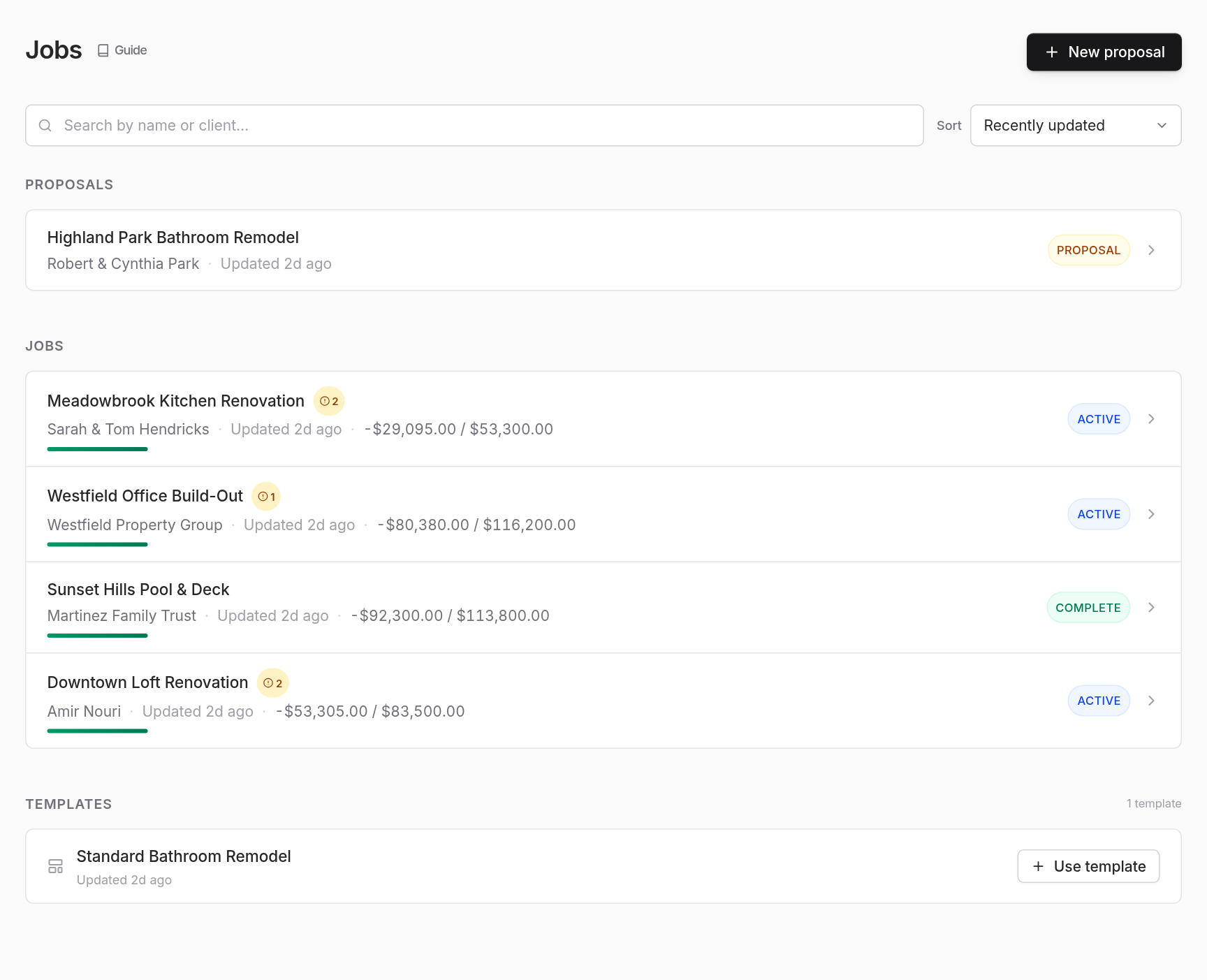
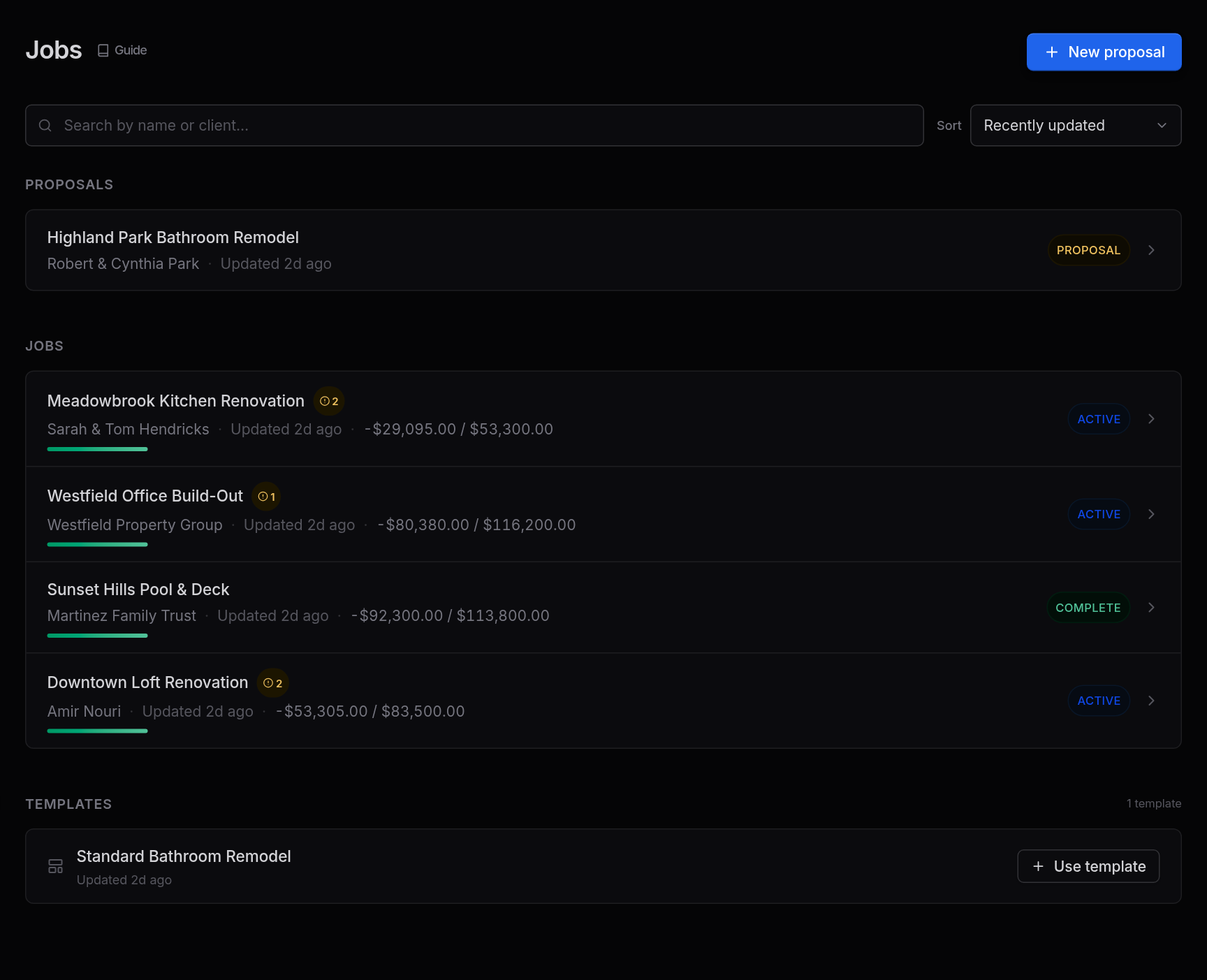
Jobs is the front door. Your jobs come first, with the one you worked on most recently at the top, so whatever is moving stays in reach and anything that has stalled drifts down. Search and sort sit above the list. Below the jobs are your proposals (work you have not won yet) and templates (structures you reuse). When a client owes you money, a Money owed to you card above the list shows how much and which draws are late.
1
2
Your jobs first, the one you touched last on top. Proposals follow.
A job starts as a draft, which is the proposal stage. Drafts stay deliberately plain: there is no spending to track yet, so the page is only the estimate. Once the client signs, or you approve it yourself, the job becomes active. Its page then shows the money across the top (contract, spent, uncategorized, remaining) over six tabs: Overview, Budget, Change Orders, Transactions, Payments and Project Costing.
When the work is done, the job's actions menu (the "…" button in its header) lets you mark it complete, and anything you no longer need on the list can be archived. Archiving hides a job from this list and from every job picker but keeps all of its history; Show archived at the bottom of the list keeps archived jobs and proposals in separate sections, each grouped by year, and any archived job can be restored from the same menu. Deleting is also there, for mistakes: it is permanent, and a job with history asks you to type its name first.
Where the estimate lives
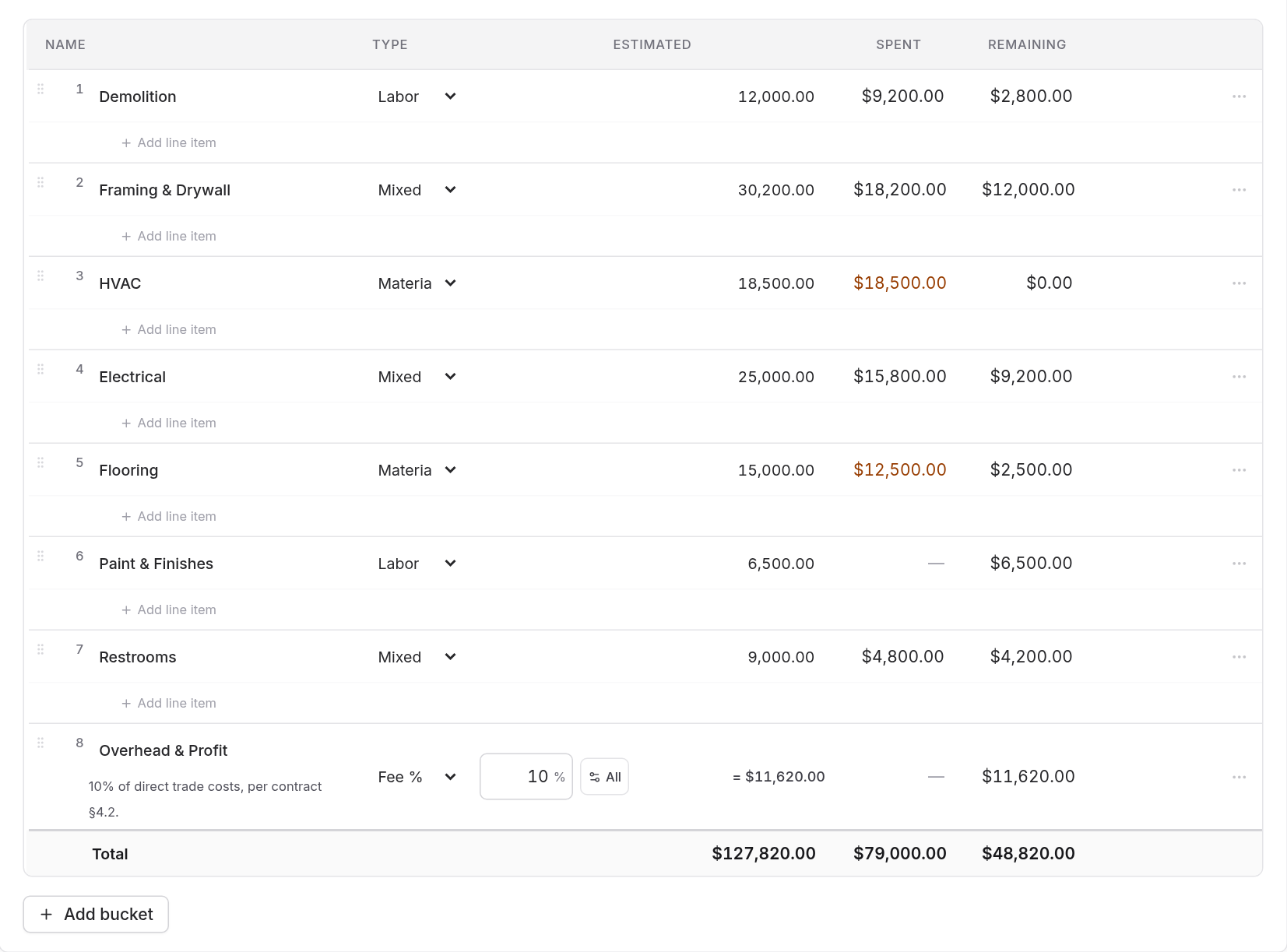
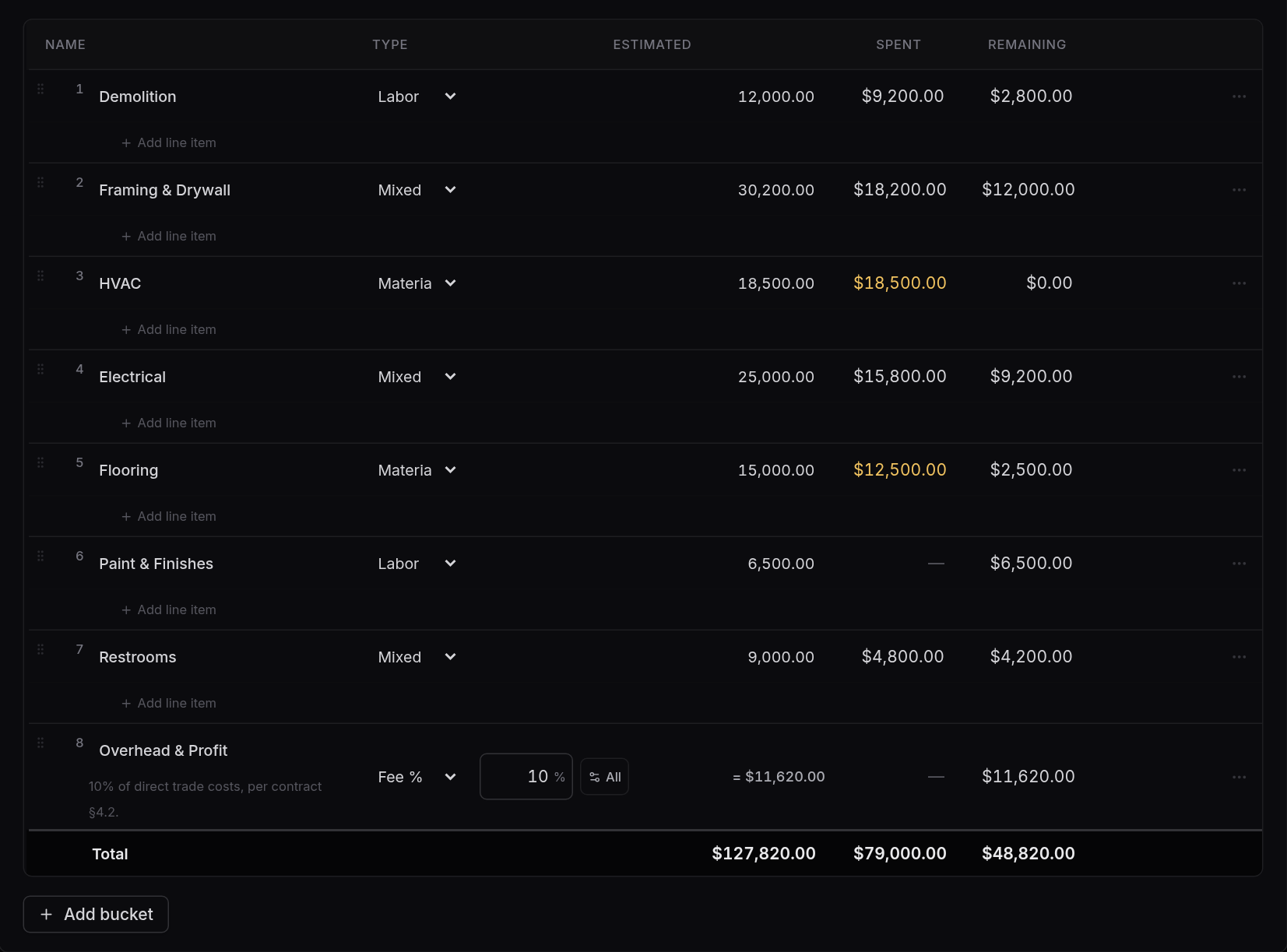
Inside an active job, the Budget tab reads each category's budget against what's been spent, with a few words beside each name ("$1,700 over", "$6,300 left"). Edit the estimate opens the editable version, the same one a proposal shows. Categories nest as deep as you like and parents add up their children, so you type a number in exactly one place.
1
2
3
Categories roll up to their parent automatically.
Where spending lands
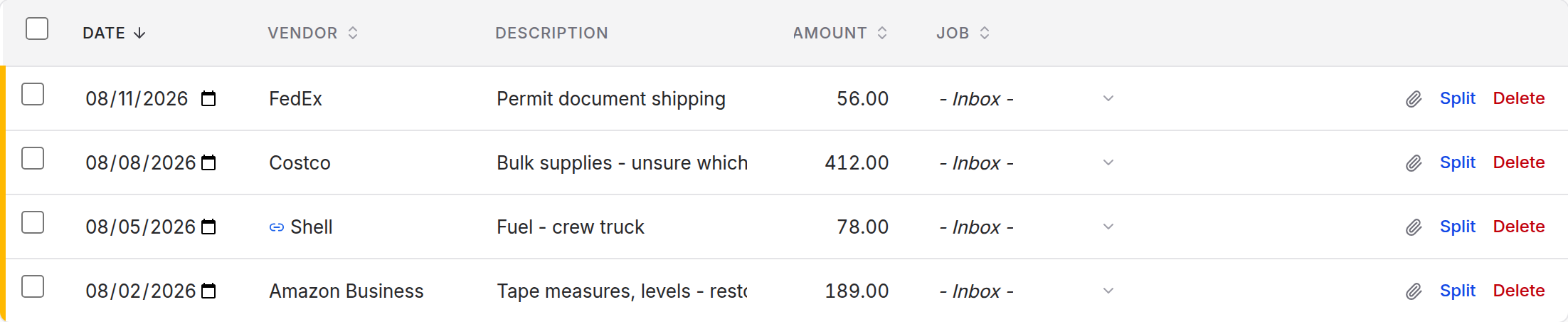
Everything you spend arrives in the inbox first, whether it came from a bank feed, a file, a paste, or your own typing. The daily habit is working this queue down to empty.
1
2
Everything you spend lands here first.
Assigning a job is the important half. Picking a category is a useful second step, but it never blocks you, and there is a whole tab for charges that have a job but no category yet.
Where the money question gets answered
A job's Project Costing tab is where the money stands: the schedule of values (your budget, the changes to it, what you have spent and what remains), what's ready to bill and your draw requests. Money received is on Payments. See project costing and draws.
Tip
If you only ever do two things in this app, make them these: send the proposal, and keep the inbox empty. Everything else is computed from those.
What to read next
- Jobs and estimates for how categories and roll-up work.
- Transactions and the inbox for getting spending in.
- When numbers do not match if a figure surprises you.